
Windows File Structure: Complete Guide for Beginners
Welcome to the Ultimate Windows File System Tutorial
This comprehensive tutorial is designed for beginners and IT professionals who want to understand how Windows files and folders are organized, managed, and secured. Covering essential topics like file structure hierarchy, system folders, file paths, naming conventions, permissions, and efficient organization strategies, this guide provides step-by-step explanations and practical examples.
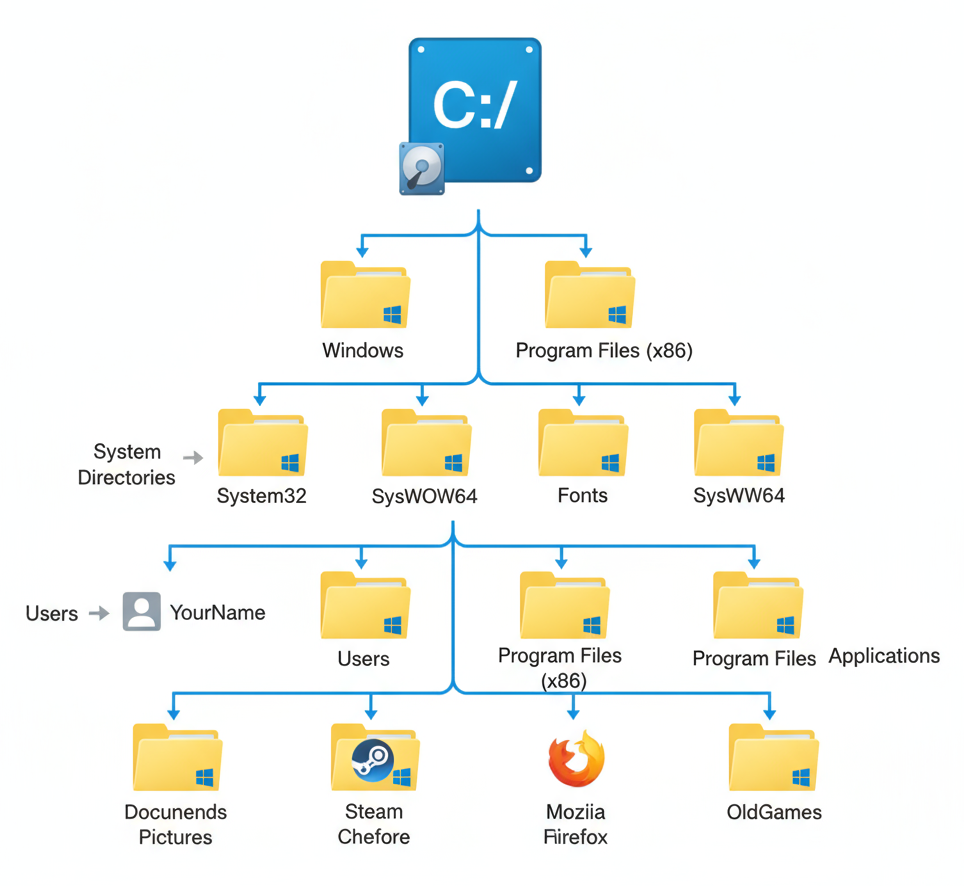
Whether you’re troubleshooting Windows errors, setting up a secure folder system, or simply wanting to improve your workflow, our expertly crafted content will teach you everything from basic navigation to advanced management tips. Explore real-world scenarios, learn about Windows directory structure (C:, D:, Program Files, Users, AppData), and discover the best practices for file security, backup, and recovery.
Learning Objectives
Introduction
Windows file structure is the organizational system that manages how files and folders are stored on your computer. Understanding this structure is essential for efficient file management, troubleshooting, and securing your data. This tutorial explains the Windows file system hierarchy, including NTFS, FAT32, and ReFS, along with practical guidance on file permissions, directory navigation, and organization strategies. Whether you're a beginner learning file management or an IT professional optimizing system performance, this guide provides step-by-step instructions for mastering Windows file structure.
- To explain what a file system is and why understanding Windows file structure is important.
- To describe types of Windows file systems (e.g., FAT32, exFAT, NTFS, ReFS) with their best use cases and limitations.
- To guide users through navigating Windows directories (system, user, and application folders), including critical system and hidden folders.
- To teach best practices for file naming, permissions, security, backup, and recovery.
- To enable troubleshooting, efficient management, and protection of files using both File Explorer and command-line tools.
- To provide practical tips for organization, maintenance, and advanced file system topics like disk management, optimization, scripting, and automation.
Complete Guide to Windows File Structure System
A comprehensive tutorial for understanding how Windows organizes and manages files on your computer.
Introduction
The Windows file system is the foundation that organizes all data on your computer - from system files that run Windows itself to your personal documents and photos. Understanding this structure is crucial for users, developers, and IT professionals to effectively manage, troubleshoot, and secure their systems.[4] [7]
What is a File System?
A file system is a method used by operating systems to store, organize, and retrieve data on storage devices like hard drives, SSDs, and USB drives. Think of it as a sophisticated filing cabinet that:
- Organizes files into folders and directories.
- Keeps track of where each file is stored.
- Manages file names, sizes, and permissions.
- Ensures data integrity and security.
Why Understanding Windows File Structure Matters
For Users:
- Navigate your computer efficiently.
- Organize files logically.
- Troubleshoot storage issues.
- Protect important data.
For Developers:
- Write applications that interact properly with the file system.
- Understand where to store application data.
- Implement proper file handling.
For IT Professionals:
- Manage enterprise file systems.
- Implement security policies.
- Troubleshoot file system corruption.
- Plan backup and recovery strategies.
Types of File Systems in Windows
Windows supports several file system types, each designed for different use cases and storage requirements. [1] [4]
FAT16 and FAT32 (File Allocation Table)
Definition: FAT32 is an older file system that uses a 32-bit file allocation table to manage data.
FAT32 Characteristics:
- Maximum file size: 4GB
- Maximum partition size: 2TB
- Compatibility: Works with almost all operating systems.
- Structure: Simple file allocation table tracks file locations.
Best Use Cases:
- USB flash drives and external storage.
- Devices that need cross-platform compatibility.
- Older systems and embedded devices.
Limitations:
- No built-in security features.
- Limited file size support.
- No journaling (less reliable).
exFAT (Extended File Allocation Table)
Definitions: exFAT is a modern replacement for FAT32 designed by Microsoft, optimized for flash drives.
exFAT Features:
- Maximum file size: 16 exabytes (virtually unlimited).
- Maximum partition size: 64 zebibytes.
- Optimized: For flash drives and external storage.
- Compatibility: Supported by modern Windows, macOS, and Linux.
Best Use Cases:
- Large external drives.
- Sharing large files between different operating systems.
- SD cards and other removable media.
NTFS (New Technology File System)
Definition: NTFS is the default file system for modern Windows versions, offering advanced features.
NTFS Advanced Features:
- Security: File-level permissions and encryption.
- Reliability: Journaling prevents data corruption.
- Large files: Supports files larger than 4GB.
- Compression: Built-in file compression.
- Quotas: Disk space management per user.
Structure Components:
- Master File Table (MFT): Central database of all files.
- Security descriptors: Access control information.
- Attributes: File metadata and properties.
Best Use Cases:
- Windows system drives.
- Enterprise environments.
- Any scenario requiring security and reliability.
ReFS (Resilient File System)
Definition: ReFS is Microsoft’s next-generation file system designed for fault tolerance and data integrity.
ReFS Modern Features:
- Data integrity: Automatic error detection and correction.
- Scalability: Designed for very large volumes.
- Snapshots: Point-in-time copies for backup.
- Storage Spaces: Integration with Windows storage virtualization.
Current Limitations:
- Limited to Windows Server and Windows Pro.
- Cannot be used for system boot drives.
- Still evolving technology.
Best Use Cases:
- Data archival and backup systems.
- Large-scale file servers.
- Storage pools with redundancy requirements.
Comparison Table:
| Feature | FAT32 | exFAT | NTFS | ReFS |
|---|---|---|---|---|
| Max File Size | 4 GB | 16 EB | 16 TB | 35 PB+ |
| Max Volume Size | 2 TB | 128 PB | 256 TB | Huge |
| Permissions | No | No | Yes | Yes |
| Journaling | No | No | Yes | Yes |
| Use-case | Flash, SD | Flash, SD | System, HDD | Server, Storage |
Windows File System Hierarchy
The Windows File System Hierarchy refers to the organized, tree-like structure in which Windows stores and manages files and folders on a computer.
Understanding the Windows directory structure helps you navigate and manage your system effectively.
Drive Letters and Root Directories
C:\ (Primary System Drive)
├── Windows\             # Core operating system files
├── Program Files\       # 64-bit applications
├── Program Files (x86)\ # 32-bit applications
├── Users\               # User profiles and data
├── ProgramData\         # Application data (all users)
└── temp\                # Temporary files
Common Drive Assignments:
- C:: Primary system drive (Windows installation).
- D:: Secondary hard drive or DVD/CD drive.
- E:, F:, etc.: Additional drives, USB devices, network drives.
Critical System Folders
Windows Directory (C:\Windows)
Contains core operating system files that Windows needs to run:
C:\Windows\
├── System32\       # Essential system files and drivers
├── SysWOW64\       # 32-bit system files (on 64-bit systems)
├── Boot\           # Boot configuration and files
├── Fonts\          # System fonts
├── Temp\           # System temporary files
└── assembly\       # .NET Framework assemblies
⚠️ Warning: Never manually delete files from the Windows directory unless you're an advanced user performing specific troubleshooting.
Program Files Directories
Where installed applications store their executable files:
- C:\Program Files: 64-bit applications on 64-bit systems.
- C:\Program Files (x86): 32-bit applications on 64-bit systems.
Users Directory (C:\Users)
Contains individual user profiles and personal data:
C:\Users\
├── [Username]\       # Individual user folder
│   ├── Desktop\      # Desktop files and shortcuts
│   ├── Documents\    # User documents
│   ├── Downloads\    # Downloaded files
│   ├── Pictures\     # Photo collections
│   ├── Music\        # Audio files
│   ├── Videos\       # Video files
│   └── AppData\      # Application-specific user data
│       ├── Local\    # Machine-specific app data
│       ├── LocalLow\ # Low-privilege app data
│       └── Roaming\  # Profile-portable app data
├── Public\           # Shared files for all users
└── Default\          # Template for new user accounts
Hidden and Protected System Files
AppData Folder: Contains user-specific application data
- Local: Data tied to specific computer.
- LocalLow: Low-privilege application data.
- Roaming: Data that follows user profiles across networks.
# View hidden/system files (Command Prompt)
dir /a:h                    # Hidden files only
dir /a:s                    # System files only
dir /a:hs                   # Hidden and system files
attrib +h +s filename.txt   # Make file hidden and system
User Profile Structure
AppData Directory Breakdown:
%USERPROFILE%\AppData\
├── Local\                    # Local machine specific data
│   ├── Temp\                 # User temporary files
│   ├── Microsoft\Windows\    # Windows-specific data
│   └── [ApplicationName]\    # App-specific local data
├── Roaming\                  # Roaming profile data
│   ├── Microsoft\Windows\    # Roaming Windows settings
│   └── [ApplicationName]\    # App-specific roaming data
└── LocalLow\                 # Low integrity applications
    └── [ApplicationName]\    # Sandboxed app data
Security Significance:
- AppData\Local: Often contains cached credentials and tokens.
- AppData\Roaming: Synchronized across domain computers
- AppData\LocalLow: Used by sandboxed applications (browsers, etc.).
File Paths & Naming Conventions
Understanding how Windows handles file paths is essential for effective file management and programming.
Absolute vs Relative Paths
Absolute Path: Complete path from drive root
C:\Users\JohnDoe\Documents\report.docx
D:\Projects\Website\index.html
Relative Path: Path relative to current directory
Documents\report.docx           # From user home directory
..\Pictures\photo.jpg           # Up one level, then Pictures
.\scripts\backup.bat            # Current directory, then scripts
Path Separators:
- Windows uses backslash (
\) as the primary separator. - Forward slash (
/) also works in many contexts. - UNC paths for network resources:
\\server\share\folder.
File Naming Rules and Restrictions
>Reserved Characters (cannot be used in filenames):
< > : " | ? * / \
Reserved Names (cannot be used in filenames):
CON, PRN, AUX, NUL
COM1 through COM9
LPT1 through LPT9
Naming Guidelines:
- Maximum filename length: 255 characters.
- Maximum path length: 260 characters (traditional limit).
- Case-insensitive but case-preserving.
- Trailing spaces and periods are automatically removed.
Best Practices for File Naming:
- Use descriptive, meaningful names.
- Avoid special characters for compatibility.
- Consider using dates in YYYY-MM-DD format for sorting.
- Keep names reasonably short but descriptive.
Extended Path Support
Modern Windows versions support longer paths (up to 32,767 characters) when:
- Long path support is enabled in Windows settings.
- Applications are designed to handle extended paths.
- Paths are prefixed with
\\?\for API calls.
File Attributes & Permissions
Windows files have various attributes and permissions that control access and behavior.
File Attributes
File attributes are metadata properties associated with files and folders that define specific behaviors, characteristics, or system-level flags. These attributes control how the operating system and applications treat the file.
Basic File Attributes
Common Attributes:
# View file attributes
attrib filename.txt

# Common attributes:
R - Read-only
H - Hidden
S - System
A - Archive
- Read-only: File cannot be modified or deleted.
- Hidden: File not visible in normal directory listings.
- System: Critical system file, usually hidden.
- Archive: File has been modified since last backup
Viewing and Modifying Attributes:
# View file attributes
attrib filename.txt

# Set read-only attribute
attrib +R filename.txt

# Remove hidden attribute
attrib -H filename.txt

# Multiple attributes
attrib +R +H important_file.txt
Common File Attributes:
| Attribute | Description | Effect |
|---|---|---|
| Read-only | File cannot be modified or deleted | Prevents accidental changes |
| Hidden | File not visible in normal directory listings | Conceals system or sensitive files |
| System | Critical system file used by the OS | Should not be altered by users |
| Archive | File has been modified since last backup | Used by backup software |
| Compressed | File is compressed to save disk space | Automatic compression/decompression |
| Encrypted | File is encrypted for security | Requires proper credentials to access |
File Permissions
File permissions are access control rules that determine which users or groups can perform specific actions (read, write, execute) on files and folders. They form the foundation of file system security.
Basic Permission Types:
| Permission | Symbol | Files | Folders |
|---|---|---|---|
| Read | r | View file contents | List directory contents |
| Write | w | Modify file contents | Create/delete files in directory |
| Execute | x | Run executable files | Enter/traverse directory |
Permission Scopes:
- Owner/User - The user who owns the file
- Group - Users belonging to the file's group
- Others/Everyone - All other users on the system
NTFS Permissions (Access Control)
NTFS provides granular security through Access Control Lists (ACLs):
Basic Permissions:
- Full Control: Complete access to file/folder.
- Modify: Read, write, delete file contents.
- Read & Execute: View and run files.
- Read: View file contents only.
- Write: Modify file contents.
Advanced Permissions:
Advanced NTFS Permissions:
├── Traverse Folder/Execute File
├── List Folder/Read Data
├── Read Attributes
├── Read Extended Attributes
├── Create Files/Write Data
├── Create Folders/Append Data
├── Write Attributes
├── Write Extended Attributes
├── Delete
├── Delete Subfolders and Files
├── Read Permissions
├── Change Permissions
└── Take Ownership
Ownership and Access Control
File Ownership:
- Every file has an owner (usually the creator).
- Owner can modify permissions.
- Administrators can take ownership.
Security Groups:
- Administrators: Full system access.
- Users: Standard user permissions.
- Everyone: All users on the system.
- Authenticated Users: All logged-in users.
Practical Demonstrations
Let's walk through common file system tasks to reinforce your understanding.
Navigating with File Explorer
Opening File Explorer:
- Windows key + E
- Click folder icon in taskbar.
- Right-click Start menu → File Explorer
Navigation Tips:
- Use address bar for quick navigation:
C:\Users\%USERNAME%\Documents. - Breadcrumb navigation in address bar.
- Use arrow keys and Enter for keyboard navigation.
- Ctrl+L to focus address bar.
Viewing Hidden and System Files
Enable Advanced View Options:
- Open File Explorer.
- Click View → Options → Change folder and search options.
- Select View tab.
- Uncheck: "Hide extensions for known file types".
- Uncheck: "Hide protected operating system files".
- Check: "Show hidden files, folders, and drives".
Using Command Line:
# List all files including hidden
dir /a

# List only hidden files
dir /ah

# List system files
dir /as
Checking File Properties and Permissions
Through File Explorer:
- Right-click file or folder.
- Select "Properties".
- General tab: Basic attributes.
- Security tab: Permissions and ownership.
- Details tab: Extended metadata.
Using Command Line Tools:
# View file information
dir filename.txt

# Check permissions (PowerShell)
Get-Acl filename.txt | Format-List

# View detailed file information
fsutil file queryfileid filename.txt
Creating and Managing Folders
Best Practices for Folder Structure:
C:\Users\[Username]\
├── Documents\
│   ├── Work\
│   │   ├── Projects\
│   │   ├── Reports\
│   │   └── Templates\
│   ├── Personal\
│   └── Archive\
├── Desktop\
└── Downloads\
    ├── Software\
    ├── Documents\
    └── Media\
Command Line Folder Operations:
# Create directory
mkdir "Project Files\2025\Reports"

# Create nested directories
md "C:\Data\Backup\Daily\Monday"

# Remove empty directory
rmdir "Old Folder"

# Remove directory and contents
rmdir /s "Folder With Files"
Best Practices
Following these guidelines will help you maintain an organized and secure file system.
Efficient File Organization
Hierarchical Structure:
- Create logical folder hierarchies.
- Group related files together.
- Use consistent naming conventions.
- Limit folder depth (generally no more than 5-6 levels deep).
Document Management:
Documents\
├── Active Projects\    # Current work
├── Archive\            # Completed projects
├── Templates\          # Reusable documents
├── Reference\          # Important documents for reference
└── Inbox\              # Temporary location for new files
Regular Maintenance:
- Review and clean up Downloads folder monthly.
- Archive old projects.
- Delete temporary files.
- Organize Desktop files into proper folders.
Backup and Recovery Strategies
3-2-1 Backup Rule:
- 3 copies of important data.
- 2 different types of media.
- 1 copy stored off-site.
Windows Built-in Tools:
- File History: Automatic backup of user files.
- System Restore: Restore points for system files.
- Windows Backup: Full system backup capability.
File System Backup Locations:
C:\Users\[Username]\
├── Documents\          ✅ Backup essential
├── Desktop\            ✅ Backup essential
├── Pictures\           ✅ Backup essential
├── Downloads\          ⚠️ Review and backup selectively
└── AppData\            ⚠️ Application settings (some apps)
Security Best Practices
Access Control:
- Use standard user accounts for daily work.
- Only use administrator accounts when necessary.
- Regularly review file permissions.
- Remove access for former users/employees.
Data Protection:
- Enable BitLocker for drive encryption.
- Use strong passwords for user accounts.
- Keep Windows and antivirus software updated.
- Be cautious with files from unknown sources.
Common Mistakes to Avoid
Dangerous Actions:
- ❌ Never delete files from C:\Windows\ unless you know exactly what you're doing.
- ❌ Don't store personal files on the Desktop (affects system performance).
- ❌ Avoid using admin accounts for routine tasks.
- ❌ Don't ignore disk space warnings.
File Naming Mistakes:
- ❌ Using special characters that cause compatibility issues.
- ❌ Creating files with names longer than 255 characters.
- ❌ Using reserved system names (CON, PRN, etc.).
Organization Mistakes:
- ❌ Storing everything in Downloads folder.
- ❌ Creating too many nested folders (hard to navigate).
- ❌ Not backing up important data regularly.
Advanced Topics & Next Steps
Ready to deepen your understanding? Here are advanced topics to explore.
Disk Management and Partitioning
Disk Management Console (diskmgmt.msc):
- Create and format partitions.
- Assign drive letters.
- Extend or shrink volumes.
- Convert between disk types.
Advanced Storage Features:
- Dynamic disks vs basic disks.
- RAID configurations.
- Storage Spaces for redundancy.
- Virtual hard disks (VHD/VHDX).
File System Optimization
Performance Optimization:
- Disk Cleanup utility for removing temporary files.
- Disk Defragmentation (for traditional hard drives)s.
- SSD optimization (TRIM command).
- Page file and hibernation file management.
Monitoring Tools:
- Performance Monitor for disk I/O metrics.
- Resource Monitor for real-time file system activity.
- Event Viewer for file system errors.
- PowerShell cmdlets for advanced management.
File System Corruption and Recovery
Built-in Recovery Tools:
# Check disk for errors
chkdsk C: /f /r

# System file checker
sfc /scannow

# Component store verification
dism /online /cleanup-image /checkhealth
Advanced Recovery Scenarios:
- Boot from Windows Recovery Environment.
- Use third-party data recovery tools.
- Professional data recovery services for physical damage.
- Understanding file system journals and logs.
Scripting and Automation
PowerShell for File Management:
# Get folder sizes
Get-ChildItem | Measure-Object -Property Length -Sum

# Find large files
Get-ChildItem -Recurse | Where {$_.Length -gt 100MB} | Select Name, Length

# Set permissions
Set-Acl -Path "C:\Data" -AclObject $acl
Batch Scripting for Automation:
- Automated backup scripts.
- File organization scripts.
- System maintenance routines.
Key Takeaways
Essential Concepts to Remember:
- File System Types: NTFS for system drives, FAT32/exFAT for removable media, ReFS for advanced scenarios.
- Directory Structure: Understanding Windows system folders, user directories, and the purpose of each.
- Path Management: Knowing the difference between absolute and relative paths, file naming rules, and length limitations.
- Permissions: NTFS provides granular security controls through users, groups, and permissions.
- Organization: Logical folder hierarchies and consistent naming conventions improve productivity.
- Security: Regular backups, proper access controls, and avoiding common mistakes protect your data.
- Maintenance: Regular cleanup, monitoring, and optimization keep your file system healthy.
Quick Reference Commands:
dir /a              # List all files including hidden
attrib +h file.txt  # Hide a file
chkdsk C: /f        # Check disk for errors
sfc /scannow        # Verify system files
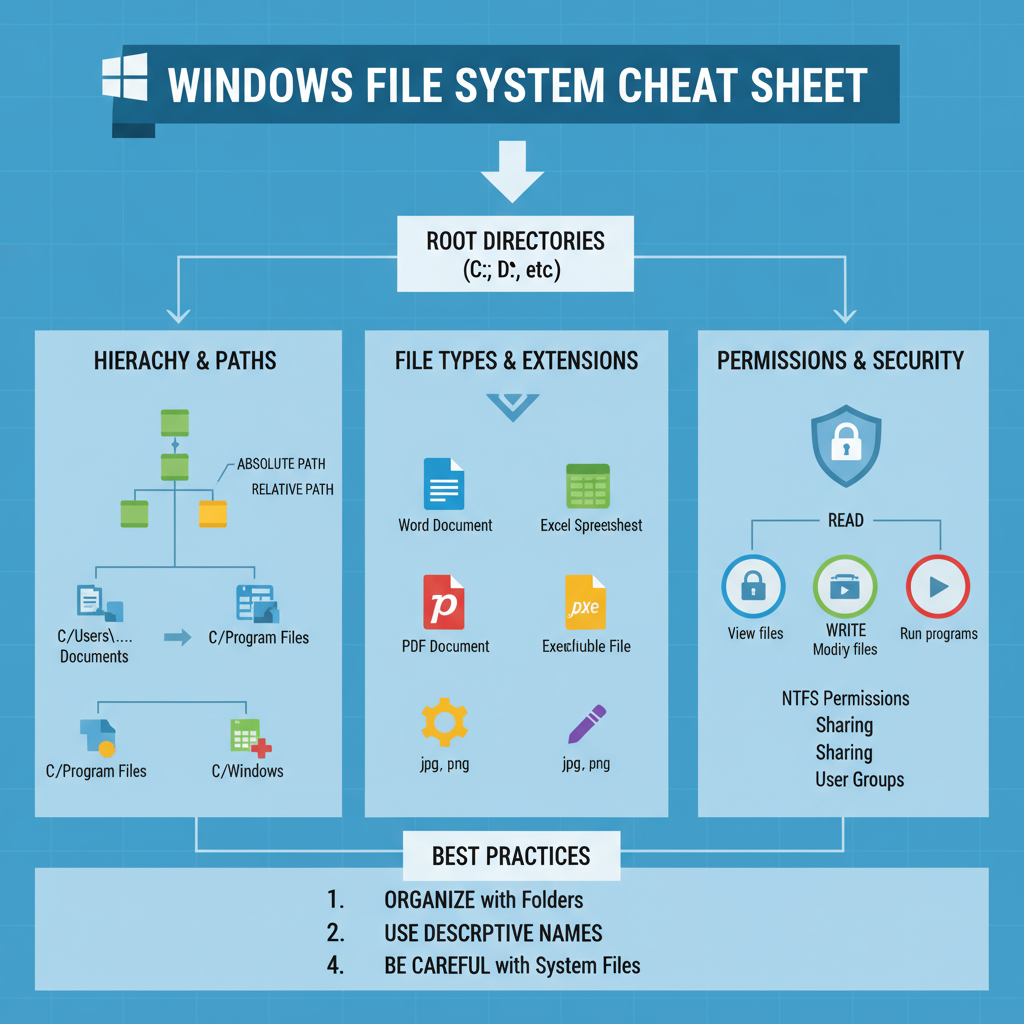
Understanding the Windows file structure system provides the foundation for effective computer use, whether you're a casual user organizing photos or an IT professional managing enterprise systems. The principles learned here apply across all Windows versions and will serve you well as technology continues to evolve.
References:
- https://ieeexplore.ieee.org/document/10489789/
- https://ieeexplore.ieee.org/document/9110074/
- https://www.semanticscholar.org/paper/fbf12b1a94dce56e41e0c9af3396d34ede3f1e8e
- http://www.atlantis-press.com/php/paper-details.php?id=25847716
- https://journal.aptii.or.id/index.php/Repeater/article/view/343
- https://www.semanticscholar.org/paper/bb6e7031f204d11914c6a1a34d98a3372a66d086
- https://www.semanticscholar.org/paper/c1d9355f019d0baba1d86cfccfc232331552f367
- https://ieeexplore.ieee.org/document/10871898/
- https://arxiv.org/pdf/1903.01955.pdf
- https://arxiv.org/pdf/1207.5990.pdf
- https://arxiv.org/pdf/2403.15701.pdf
- https://arxiv.org/pdf/1312.1810.pdf
- https://www.ijfmr.com/papers/2024/3/19648.pdf
- http://arxiv.org/pdf/2501.04993.pdf
- https://arxiv.org/pdf/2401.08858.pdf
- https://arxiv.org/pdf/2011.01024.pdf
- https://dl.acm.org/doi/pdf/10.1145/3565026
Networking Fundamentals I
Tutorial
This tutorial provides a complete, hands-on guide to networking fundamentals, including IP addressing, MAC addresses, DNS, DHCP, OSI and TCP/IP models, subnetting, static IP configuration, and practical troubleshooting for beginners.
Go To TutorialCommon Network Protocols
Info
This tutorial introduces essential network protocols, explaining their functions, security features, and practical roles in networking, development, and cybersecurity.
Go To TutorialAbout Website
TechTutorials is a beginner-friendly learning platform offering step-by-step tutorials in programming, ethical hacking, networking, automation, and Windows setup. Learn through hands-on projects, clear explanations, and real-world examples using practical tools and open-source resources—no signups, no tracking, just actionable knowledge to accelerate your technical skills.
Color Space
Discover Perfect Palettes
Featured Wallpapers (For desktop)
Download for FREE!
.png)
.png)
.png)
.png)
.png)
.png)